How to post Live Photos on Instagram or Facebook
by
/ October 16, 2016 10:18 AM EDT
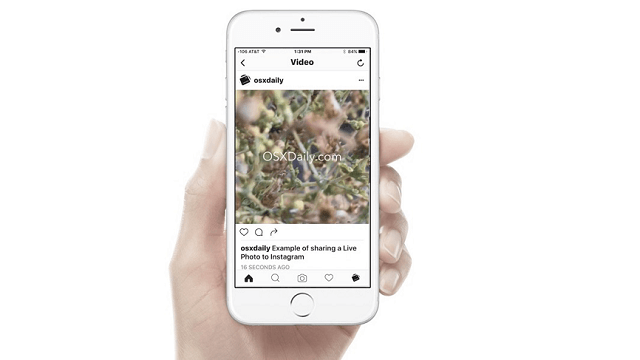
One of the biggest advantages of owning an iPhone 6s, 6s Plus, or the new iPhone 7 is the ability to create live PhotosThese images are usually much more interactive than the typical photos that are uploaded. By pressing and holding them, a kind of animation is generated, similar to a short video of a couple of seconds.
The best thing about Live Photos is that you don't need an iPhone to enjoy them in all their glory. However, there's an excellent app called Motion Stills that lets you turn any Live Photo into short videos or animated GIFs that loop endlessly.
Post Live Photos on Instagram or Facebook
- First of all, you'll need to have a Live Photo in the Photos app.
- Download the Motion Stills app via the following App Store link.
Download Motion Stills | App Store
- Launch the Motion Stills app on your iPhone and select the Live Photo you want to post to Instagram or Facebook.
- Click on the small arrow that points to the right.

- After completing the previous step, a small menu with two options will open. Here, you must select Share Clip.

- From the sharing options that will appear next, select the option save video To have the Live Photo automatically saved to the Photos app, you can also select the Instagram icon to post it directly to the social network.

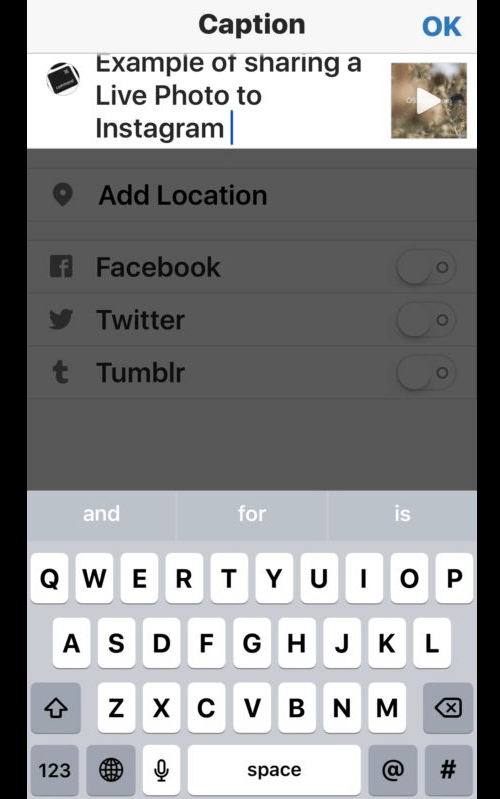
- Finally, open the Instagram or Facebook app and start editing a post, either by adding a comment or your location. Then, select the short video you created from a Live Photo and tap "OK" to post it to the social network.
With these simple steps, you will have successfully published a Live Photo on Facebook or Instagram, so that other people can see it.